Video Ingest in Traffic Base
Video Ingest – Incoming Partner Media Matching Guide
Purpose
This guide explains how to identify newly received partner videos, validate them for ingest, and correctly match them to Media Orders (MOs) in Airtable.
1. Notification of Incoming Media
- As the partner delivers content, the Slack channel
#ops-incomingwill notify when videos are received from partners.
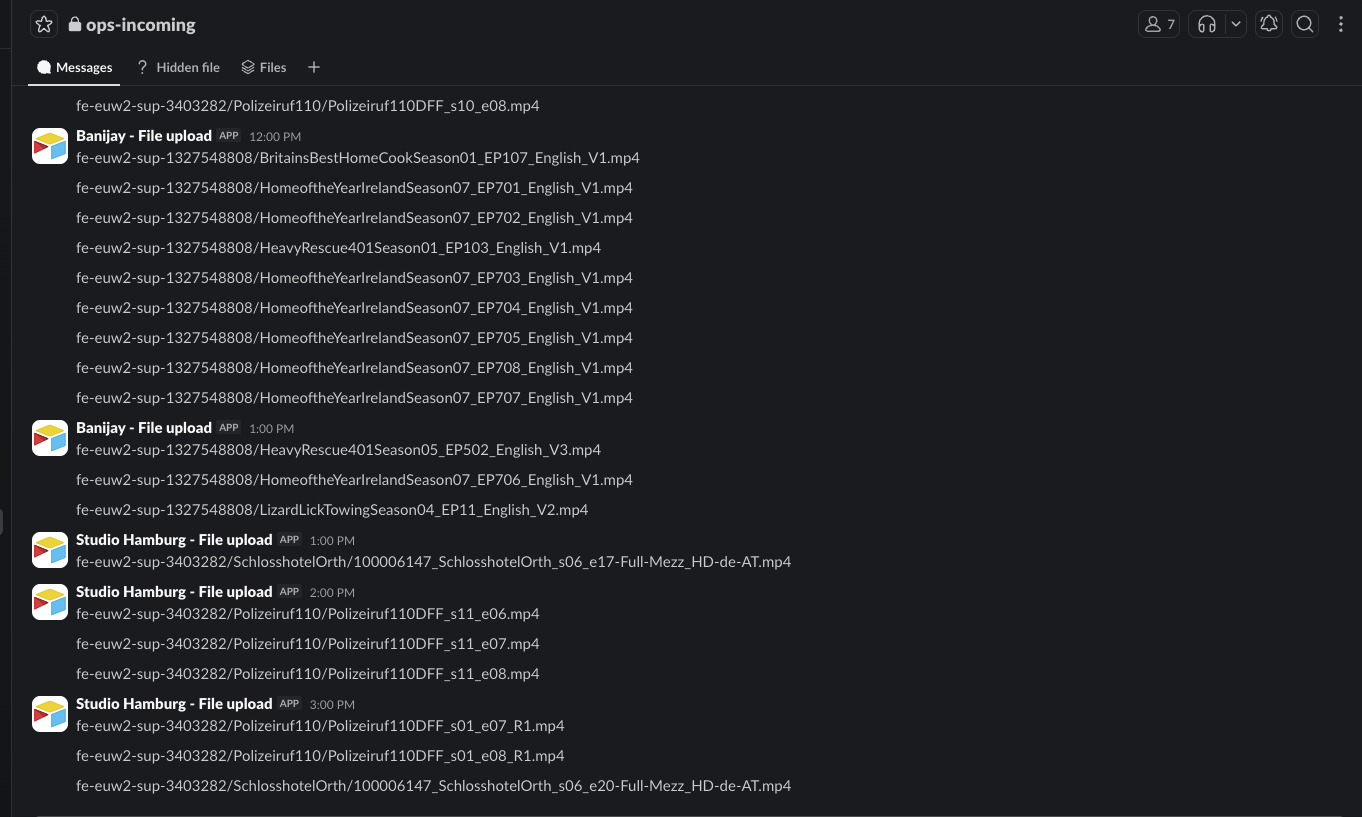
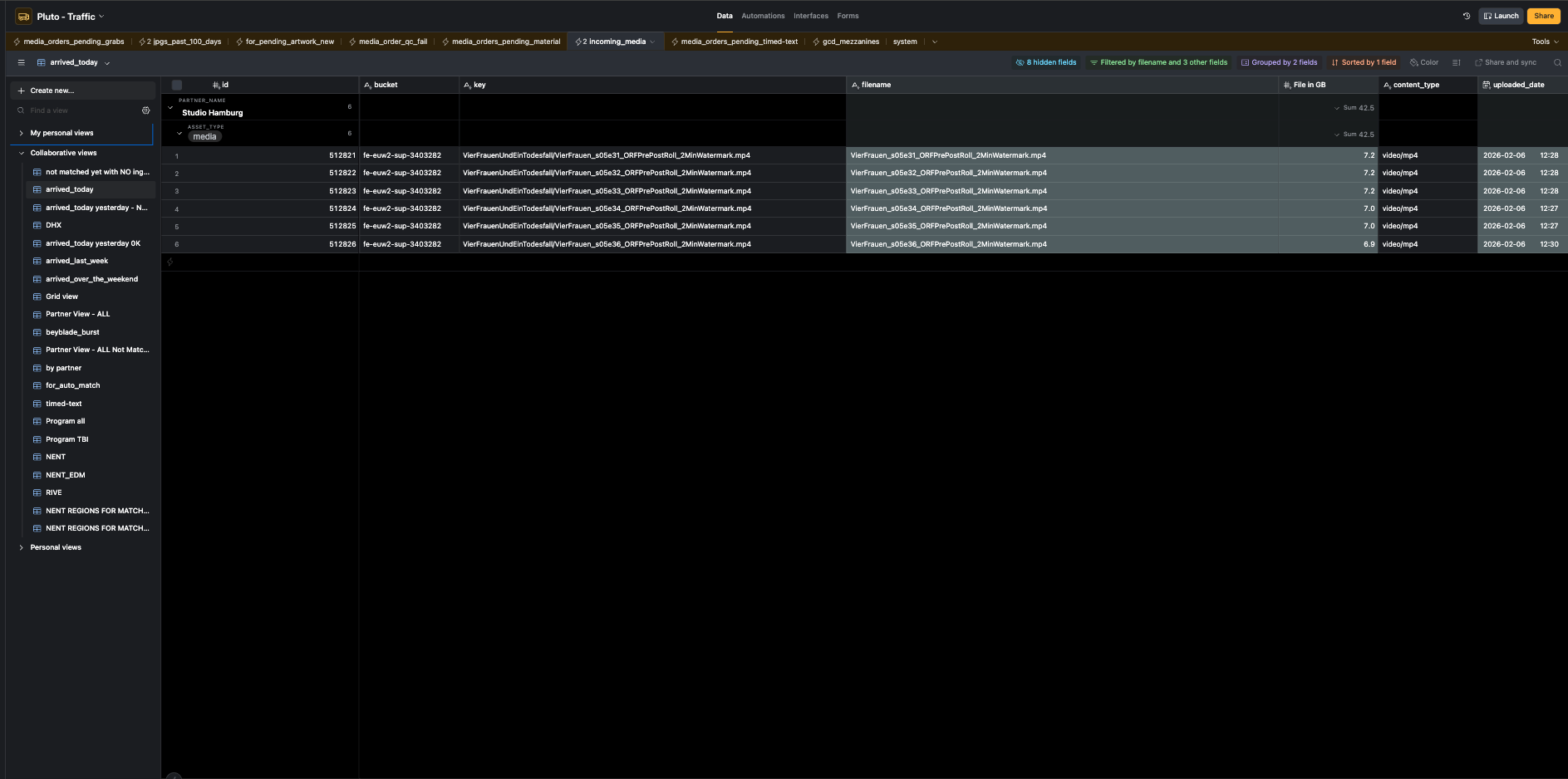
- Any received videos will also appear in the
incoming_mediaview in the Traffic Airtable base.
2. Locate Media Orders Requiring Material
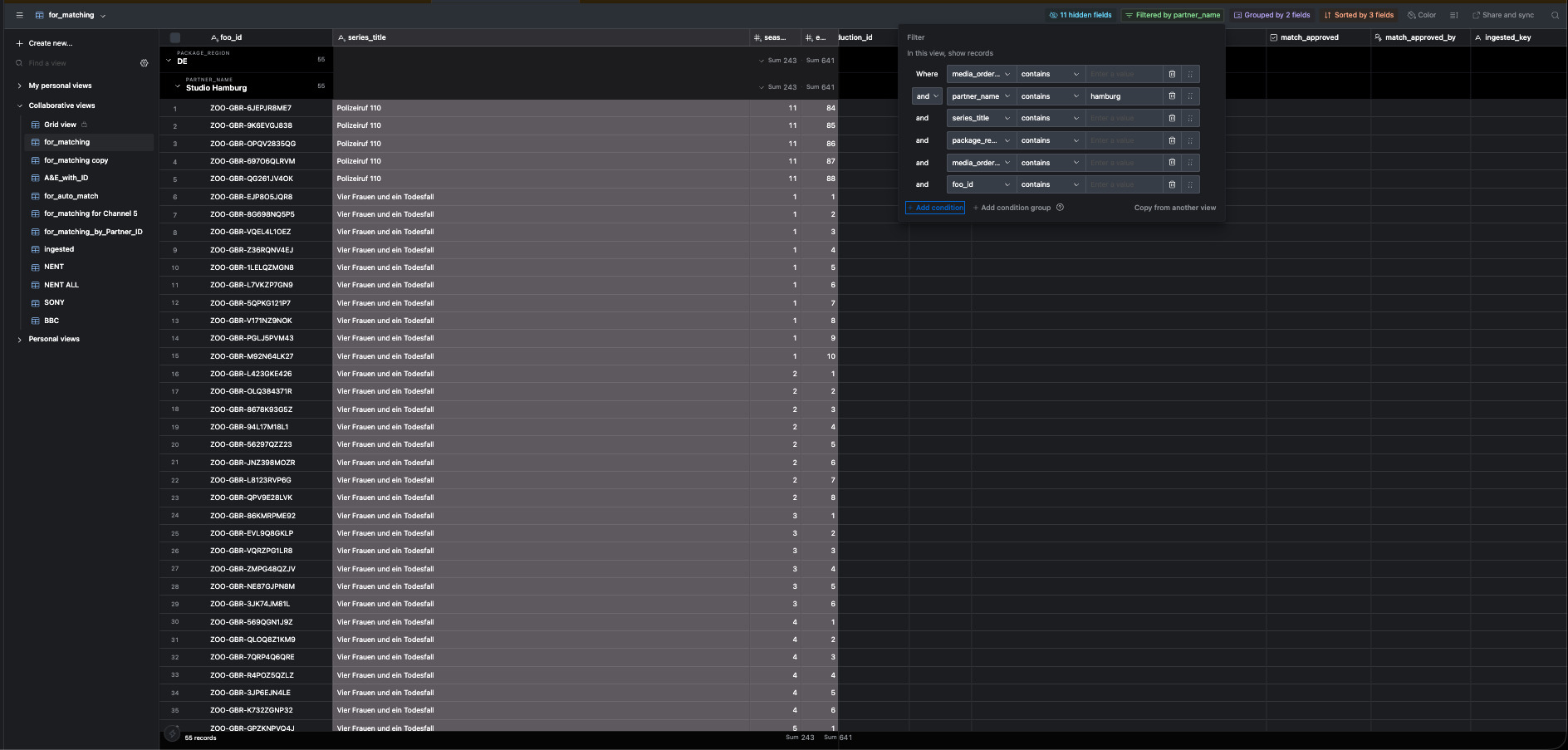
- Navigate to the
media_orders_pending_materialtab in Airtable. - This is where incoming videos must be matched to their corresponding Media Orders (MOs).
3. Pre-Ingest Validation Checks
Before ingesting or matching any video, confirm the following:
3.1 Check foo_billing_tier
The foo_billing_tier determines whether a file is ingest-ready or requires additional work.
Tier meanings:
- 1 = MP4 source / can passthrough
- 2 = Needs transcode
- 3 = Subtitles needed/ Trimming needed
Letter modifiers:
- a = Partner supplied breaks
- b = We create breaks
- c = Captions needed
File Type Rules
- If the tier starts with 1 (1a / 1b / 1c):
- The file must be an MP4
- If it is MOV or MXF, it is not valid and must be flagged
- If the file is MOV or MXF, the tier must be 2 (requires transcoding)
- Any mismatch between tier and file type should be flagged to the project manager
4. Validate the Incoming Media File
In the incoming_media tab, review each file carefully:
4.1 File Size
- Ensure the file size is not 0.0 GB
- Flag files that are unusually large
4.2 File Name
Confirm the filename includes:
- Correct Language as per the MO
- Season and episode number (e.g.
s05_e08) - No indicators of unsupported resolutions
4.3 Resolution
- Confirm the video is not 4K or any unsupported format
4.4 Content Type
- Verify the Content Type field is correct and matches the MO
4.5 Duplicate Files
- If two identical files exist:
- The most recently received file can be ingested
- Only proceed if the original has not already been ingested
5. Match Incoming Media to the Media Order
Once all checks pass:
- Copy the ID from the left column of the
incoming_mediatab — this is a 5-digit number - Paste this ID into the corresponding
incoming_mediafield in themedia_orders_pending_materialtab - Re-check:
- Billing tier
- File type
- File size
- Naming
- Content type
- When everything is confirmed, tick
Match Approved
6. If Something Is Wrong
Do not approve the match if:
- Billing tier and file type don't align
- File size is 0.0 GB or clearly incorrect
- Resolution is unsupported
- Required naming information is missing
Flag the issue to the appropriate Project Manager instead.